¶ Introduction
Caddy is a reverse proxy / web server whose greatest feature is to provide HTTPS capabilities with valid certificates on the fly using Let's Encrypt. Combined with the Caddy Docker Proxy plugin, it enables using wildcard DNS domains (e.g., example.com) for quickly addressing Docker containers with automatic HTTPS, and also determining the addresses and reverse proxy configuration dynamically using labels in each Docker service.
¶ Installation
¶ Launching Caddy with Docker Compose
Now, we need to launch the container. Here's an example Docker Compose file for launching it (network services need to be created beforehand):
version: "3.7"
services:
  caddy:
    image: lucaslorentz/caddy-docker-proxy:ci-alpine
    restart: always
    container_name: caddy
    ports:
      - 80:80
      - 443:443
    environment:
      - CADDY_INGRESS_NETWORKS=services
    networks:
      - services
    volumes:
      - /run/podman/podman.sock:/var/run/docker.sock
      - caddy_data:/data
      #  This is configured for Podman. For Docker, replace the first volume:
      #  - /var/run/docker.sock:/var/run/docker.sock

networks:
  services:
    name: services
    external: true

volumes:
  caddy_data: {}
¶ Configuring services
Now that the server is running, you need to configure each individual service you want to expose through the proxy in the lables. Below is an example of a very simple Apache server being exposed - note that the network must be the same for both Caddy and the service you want to expose. Also, note that you do not need to expose the port for the service container, since it will be routed internally in the Docker network.
version: '3'

services:
  httpd:
    image: httpd
    container_name: httpd
    networks:
      - services
    labels:
      caddy: www.example.com
      caddy.reverse_proxy: "{{upstreams 80}}"

networks:
  services:
    name: services
    external: true
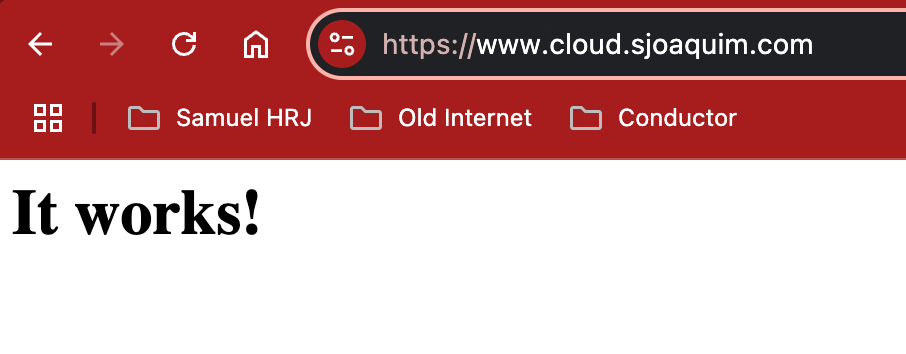
If you now access https://www.example.com/, you should be able to access the service. You should see something like this: